
How to Edit Audio Online: A Beginner Workflow That Actually Works
Direct Answer
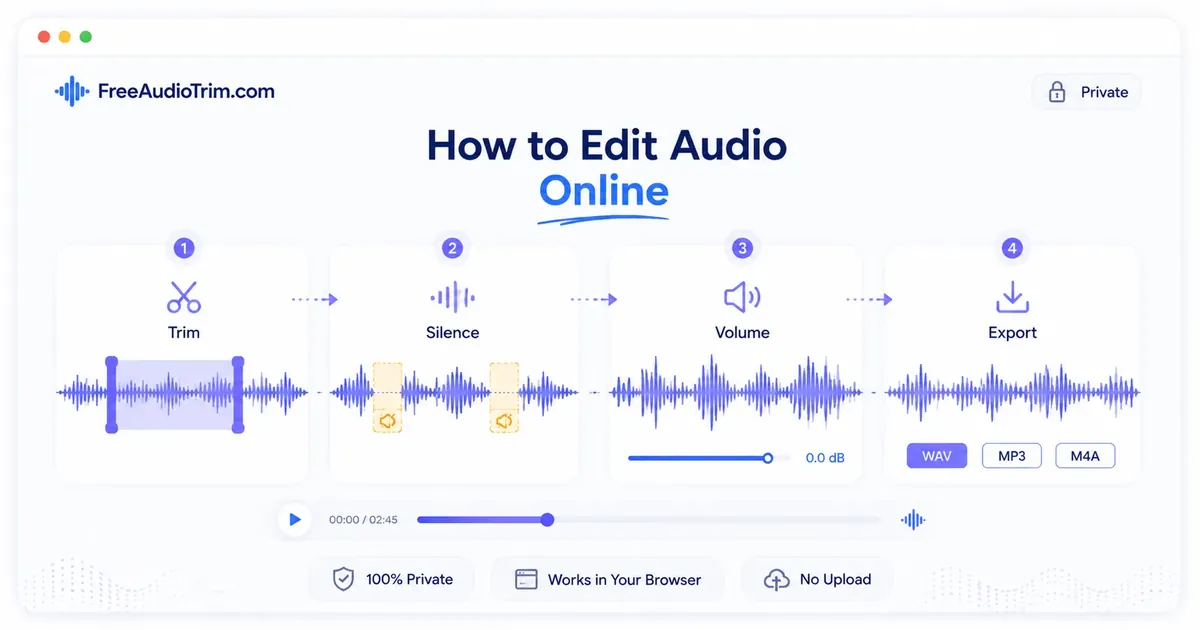
To edit audio online for free, use a simple browser workflow: trim first, remove silence if needed, normalize volume, then export or convert to the right format. This handles most beginner jobs: cleaning a podcast clip, shortening a voice note, preparing audio for YouTube, making a file easier to transcribe, or converting a recording for another app.
With FreeAudioTrim, supported tools run locally in your browser. That means you can work without installing software, creating an account, or uploading private recordings to a server. Your device does the processing, so very large files may take longer depending on your browser, memory, and computer or phone.
When to Use This Workflow
This workflow is best when the recording is basically usable and you need quick cleanup before sharing, publishing, reviewing, or transcription. It is a good fit for podcast rough cuts, interviews, lectures, WhatsApp or iPhone voice notes, webinar audio, YouTube narration, screen recordings, and client review clips.
Use a full desktop editor instead when you need multi-track mixing, detailed noise repair, EQ, compression, music production, sound design, or mastering. Online tools are strongest for focused jobs: cut the part you want, tighten long gaps, make the volume easier to hear, then export a clean working file.
Why This Matters in Real Production
Small audio jobs still affect the final result. A podcast clip with the wrong start point, a merged file in the wrong order, or a speed change pushed too far can create extra cleanup later.
Privacy note: supported FreeAudioTrim tools process files locally in your browser, so private recordings can stay on your device during common edits.
Practical tip: make one change at a time and preview before export. Browser tools are enough for trimming, cleanup, conversion, and prep work, while pro software is better for multitrack mixing, deep repair, and mastering.
Limitations to know: very long files, unusual codecs, and older phones can slow down browser processing. Keep an original copy so you can retry with a shorter file or different format if needed.
Recommended workflow: trim, remove long silence if it helps, normalize near the end, then convert once for the platform or app that will receive the file.
Step-by-Step Online Audio Editing Workflow
The order matters. If you normalize before cutting, you may balance audio that you later throw away. If you convert before editing, you may create an extra generation of compression for no reason. Start with structure, then pacing, then loudness, then format.
- Trim to remove the parts that should not be in the final file.
- Remove silence only if the kept section has long pauses or dead air.
- Normalize after the edit so the final audio plays at a more consistent level.
- Convert or export once, using the format your next step needs.
Step 1: Trim the Audio
Trimming is the first edit for most files. Use it to remove a false start, a long intro, a mistake at the end, or a section that does not belong in the final clip.
- Open Audio Cutter Online or Free MP3 Cutter.
- Select your audio file from your device.
- Use the waveform or time controls to choose the section you want to keep.
- Preview the cut before exporting.
- Export the trimmed version and keep the original source file as a backup.
For speech, leave a tiny bit of natural room at the beginning and end. Cutting too tightly can make the first or last word feel chopped.
Step 2: Remove Long Silence
Silence removal is useful when the recording has dead air between phrases: long thinking pauses, lecture gaps, interview delays, or voice note breaks. It is not the same as noise removal. It shortens quiet sections; it does not magically repair echo, hum, or background sound.
- Open Remove Silence from Audio.
- Choose the trimmed file, or the original file if the whole recording is useful.
- Start with moderate silence settings so natural pauses are not removed too aggressively.
- Preview the result and listen for rushed speech or awkward jumps.
- Export when the pacing feels tighter but still natural.
For podcasts and interviews, do not remove every pause. A little silence helps listeners understand the conversation. For transcription prep, removing long dead air can make the file shorter and easier to review, but keep enough context around words and speaker changes.
Step 3: Normalize the Volume
Normalization helps make the final file easier to hear. It is especially useful when a voice note is too quiet, a podcast guest is lower than the host, or a screen recording has uneven narration.
- Open Normalize Audio Volume.
- Choose the edited file after trimming and silence cleanup.
- Apply normalization to balance the level.
- Preview the loudest parts and make sure they do not sound harsh or distorted.
- Download the normalized file for sharing, publishing, or conversion.
Normalization does not fix every audio problem. If the recording is distorted, clipped, very noisy, or recorded too far from the microphone, making it louder can also make the flaws louder. It is best used to balance a recording that is already clear enough.
Step 4: Convert or Export the Right Format
Choose the export format based on what happens next. Format choice affects file size, compatibility, and quality loss.
- MP3 is a practical choice for sharing, podcast drafts, messaging, and smaller files.
- M4A is common for voice notes, phones, and good-quality compressed audio.
- WAV is larger, but useful for editing, archiving, transcription prep, and moving between production tools.
- FLAC keeps more quality than MP3 while reducing size compared with WAV, but not every app accepts it.
- OGG works well in some web workflows, but may be less compatible with older apps.
If you need to change file type, use the audio file converter. If your source is a video and you only need the sound, start with extract audio from video, then trim, normalize, or convert the extracted audio.
To reduce quality loss, avoid exporting the same MP3 again and again. Keep one original source file, make your edits, and export once in the final format you need.
Recommended FreeAudioTrim Workflows
Podcast or Interview Cleanup
Use Audio Cutter Online to remove setup talk and endings, Remove Silence from Audio to tighten long pauses, then Normalize Audio Volume before exporting an MP3 draft or WAV working file.
Voice Note Cleanup
Use Free MP3 Cutter or Audio Cutter Online to keep the useful part, normalize if the recording is quiet, then convert with Audio Converter if another app needs MP3, WAV, or M4A.
YouTube or Video Prep
If the audio is inside a video, use extract audio from video. Trim the extracted track, normalize narration so it is easier to hear, then export the format your video editor accepts.
Rough Voice Recording Cleanup
If the speech sounds noisy, thin, or uneven before you transcribe or publish it, run the file through AI Voice Studio after trimming. That can make voice notes, interviews, laptop mic recordings, and draft voiceovers easier to review and easier to transcribe.
Transcription Prep
Before using Audio Video Transcription Online, trim unrelated sections and remove long silence. If the recording is hard to hear, clean it with AI Voice Studio first. Clearer, shorter audio is easier to review and usually makes transcript editing less painful. WAV is often a sensible working format when file size is acceptable; MP3 is fine when you need a smaller file.
Privacy: How No-Upload Editing Helps
Private recordings can include client calls, interviews, lectures, personal voice notes, or unpublished creative work. For supported FreeAudioTrim tools, the file is processed locally in your browser. No upload is required, and the file can stay on your device.
That privacy model is also why browser performance matters. A long WAV file or large video extraction may use more memory and take longer than a small MP3. If a file does not load, try a modern browser, close heavy tabs, use a smaller source file, or convert the file to a browser-friendly format first.
Common Mistakes to Avoid
- Editing the only copy. Keep the original file untouched so you can restart if an export sounds wrong.
- Converting too early. Edit first, then convert at the end to avoid unnecessary quality loss.
- Removing too much silence. Speech needs breathing room. Over-cleaned audio can sound rushed and unnatural.
- Normalizing damaged audio. If the recording is clipped or noisy, louder may simply mean louder problems.
- Choosing format by habit. MP3 is not always best. Use WAV for editing or transcription prep when quality matters more than file size.
- Ignoring the destination. Podcast hosts, video editors, messaging apps, and transcription tools may expect different formats.
FAQ
How do I edit audio online for free?
Use a simple browser workflow: trim the file, remove long silence if needed, normalize the volume, then export or convert the result. Start with Audio Cutter Online if you are not sure which step comes first.
Can I edit audio without installing an app?
Yes. Browser-based tools let you choose a file, edit it in a tab, and download the result without installing desktop software.
Can I edit audio without uploading the file?
Yes. FreeAudioTrim tools are designed to process supported audio locally in your browser, so your file can stay on your device.
Should I normalize audio before exporting?
Usually, yes. Normalize near the end, after trimming and silence removal, so the final kept audio has a more consistent level.
Should I remove silence before trimming?
Trim first when you know which section you want to keep. Remove silence first only when the entire recording is useful but contains many long pauses.
What format should I use after editing?
Use MP3 or M4A for smaller sharing files, WAV for editing or transcription prep, FLAC when you want high quality with some compression, and the required format when a platform gives specific upload rules.
Does editing audio online reduce quality?
It can if you repeatedly export compressed formats. Trimming and exporting once is usually fine for everyday use. For better quality, keep the original source and avoid converting MP3 to MP3 multiple times.
What audio editing mistakes should I avoid?
Avoid working on your only copy, converting before editing, cutting words too tightly, removing all natural pauses, and normalizing audio that is already distorted.
When should I use a full audio editor instead?
Use a full editor when you need multi-track mixing, detailed noise repair, EQ, compression, automation, music production, or mastering. Use FreeAudioTrim for quick browser-based cleanup and prep work.
Start With the Smallest Useful Edit
The easiest way to learn audio editing is to solve one problem at a time. Cut what you do not need. Tighten silence only if the file drags. Normalize only after the structure is right. Convert only when you know the destination format.
For most beginner projects, that is enough to turn a messy recording into a cleaner file for a podcast draft, voice note, YouTube edit, transcript, client review, or archive without installing software or uploading private audio. If the voice itself still sounds rough, AI Voice Studio is the next cleanup step before transcription or subtitle work.