Guide
How to Trim MP3 OnlineLearn how to cut MP3 files quickly using a browser-based audio cutter.

Cut MP3, WAV, M4A, AAC, FLAC, and OGG files directly in your browser. Select the section you want to keep, preview the cut, add fades if needed, and download the file in your preferred format. This audio cutter works without an account and nothing gets uploaded to a server.
Drop file here or click to choose a file
Private browser processing - no server uploadAudio trimming means removing the parts you do not need and keeping the section that matters. You might cut the start of a voice note, remove a long intro from a podcast, keep one quote from an interview, or make a short clip from a longer recording.
With a browser-based free audio trimmer, the edit happens on your device. You can trim audio files, cut WAV audio, shorten M4A recordings, and prepare clips without installing desktop software or waiting for an upload queue.
Whether you need to crop audio to a specific length, clip a section from a longer recording, or shorten a file before sharing, a free MP3 trimmer handles it without any software installation.
Pick a file from your device. MP3, WAV, M4A, AAC, FLAC, and OGG are supported when your browser can read the format.
Use the waveform and time controls to set the start and end points for a voice note, podcast clip, song section, or social media edit.
Listen before exporting. Turn on fade-in or fade-out when a cut starts or ends too sharply.
Export MP3 for a smaller file that is easy to share, or WAV when you want an uncompressed file for editing.
This online audio trimmer is reliable and easy to use. A clear waveform, accurate controls, a quick preview, and a clean download. Whether you are cutting MP3 files, trimming WAV audio, or editing a voice recording, these are the features that make it possible without any complicated setup.
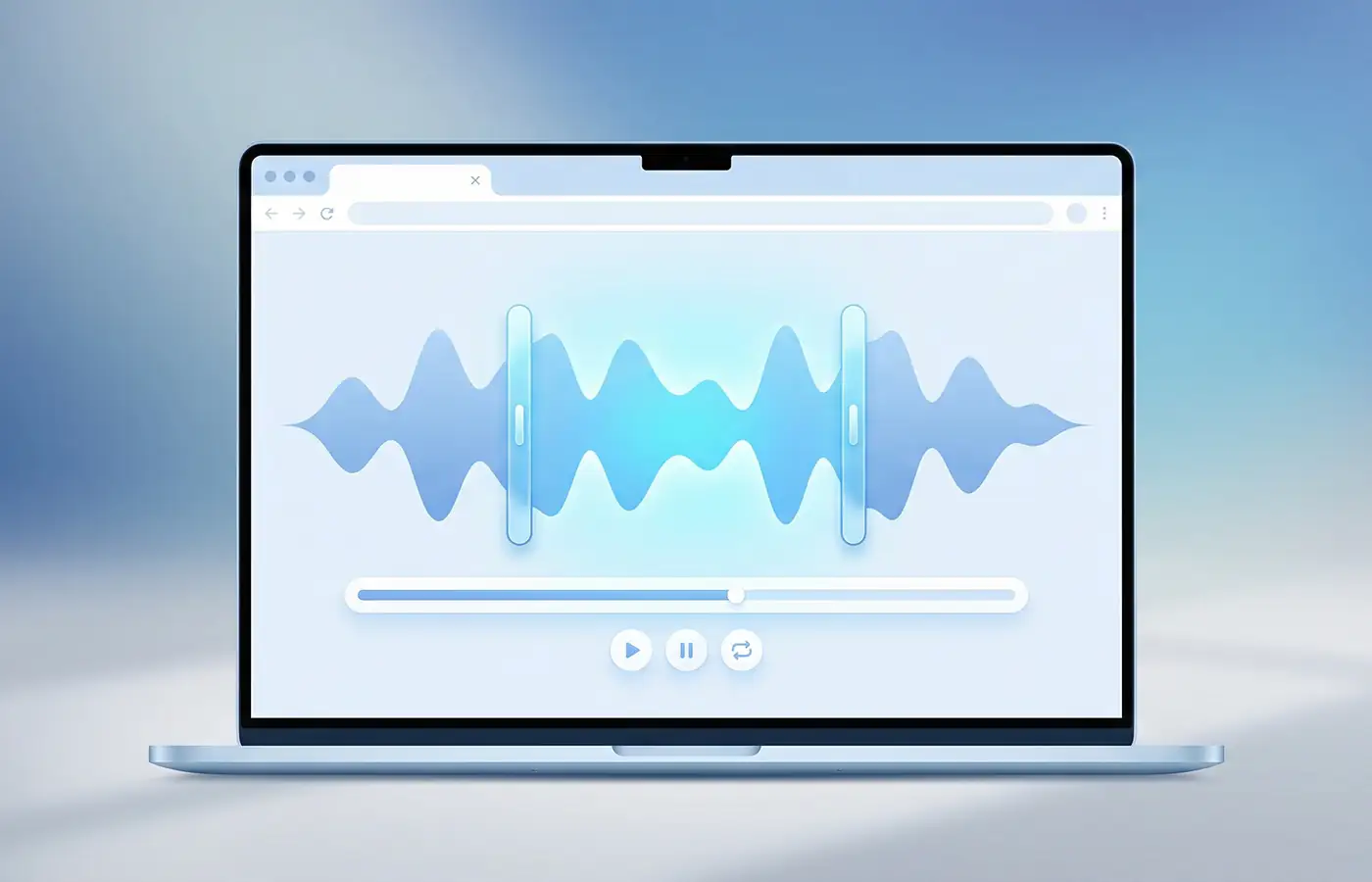
The waveform gives you a visual map of your audio file. You can see loud sections, quiet gaps, and silence at a glance. This makes it easier to place your trim points accurately instead of guessing by time alone.
A hard cut can sound abrupt, especially on music clips and voice recordings. Fade in softens the opening of your clip and fade out eases the ending. It takes one click and makes the trimmed audio sound cleaner straight away.
Before downloading, you can listen to the trimmed section directly in your browser. If the cut feels off, adjust the start or end point and preview again. No need to download multiple versions just to find the right one.
Once you are happy with the cut, you can download it as MP3 or WAV. MP3 keeps the file small and easy to share. WAV gives you an uncompressed version, which is better if you plan to edit the audio file further.
This tool supports common audio formats used for music, voice notes, podcasts, lectures, ringtones, and exported media files.
Browser support can vary by device and codec. If a file does not load, try MP3 or WAV, update your browser, or convert the file first.
Follow the main editing flow visually, from choosing a file to exporting the finished clip.
Trimming audio files does not require technical skills or desktop software. This tool works for anyone who needs a clean section from a longer recording, whether that is a quick personal clip or a professional production task.
Cut intros, outros, and interview highlights without opening a full editor. If you need a short clip for YouTube, a reel, or a newsletter, you can clip MP3 audio directly in your browser and download it in seconds.
Keep the exact section of a song or sound effect you need. This works well as a song clipper for isolating a chorus, shortening songs for social media, or preparing a segment before sending it to the Ringtone Maker.
Remove dead space from the start or end of voice notes, lectures, and interviews. Trim audio files before sharing them, transcribing them, or running them through speech enhancement.
Prepare meeting excerpts and presentation audio without installing anything. Sensitive client recordings stay on your device throughout, so there is no upload risk.
Desktop audio software is powerful, but it is more than most people need for a simple cut. If you just need one clean section from a longer recording, an audio clipper gets the job done faster and without any setup.
There is nothing to download or install. Open your browser, load your file, make the cut, and download the result. It works the same way on desktop, tablet, and mobile.
Your audio never leaves your device. Files are processed locally in your browser, so personal voice notes, client recordings, and meeting excerpts stay private throughout. There is no server involved for supported browser-based edits.
No upload queues, no account setup, no export screens at the end. You can trim audio online, preview the cut, and download a clean file in a few steps. That makes it practical for quick everyday tasks without interrupting your workflow.
This online audio cutter is completely free to use. No signup, no subscription, and no limits hidden behind a paywall. Just open the tool and start cutting.
Related Articles
Start with a practical guide if you want help choosing the right trim, cleanup, or export workflow before opening a tool.
Guide
How to Trim MP3 OnlineLearn how to cut MP3 files quickly using a browser-based audio cutter.
Guide
Convert MP3 to WAV EasilyLearn when WAV makes sense after trimming and how to convert files in your browser.
Guide
Extract Audio from VideoPull audio from a video, then trim the part you need for editing or transcription.
Guide
How to Edit Audio OnlineLearn the simplest order for trimming, cleaning, normalizing, and exporting audio in your browser.
Audio trimming is simpler than most people expect. Whether you need to trim MP3 files, cut audio online, or shorten a recording before sharing it, this tool gives you a clean result without software, accounts, or uploads. It works for a quick voice note clip, a podcast highlight, a song section, or a meeting excerpt. Load your file, make the cut, preview it, and download. Works in your browser, stays on your device, and it is free.
Choose an audio file, select the part you want to keep on the waveform, preview the cut, then download the trimmed result as MP3 or WAV. The tool is free and does not require signup.
Yes. FreeAudioTrim processes supported files locally in your browser, so you can cut MP3 files without sending them to a server.
For supported browser-based edits, yes. Your audio is processed on your device instead of being uploaded to a server. That is useful for private voice notes, client clips, meetings, interviews, and work recordings.
Yes. The tool supports common formats including MP3, WAV, M4A, AAC, FLAC, and OGG when your browser can decode the file.
Trimming only changes the part of the audio you keep. Export quality depends on the output format you choose. WAV is best when you want an uncompressed file, while MP3 is smaller and easier to share.
Yes. Use Preview to hear the selected section before export. You can also loop the selection while you adjust the start and end points.
Yes. Turn on fade-in or fade-out when the beginning or ending of the clip feels too abrupt. Fades are helpful for music clips, voice notes, and social media audio.
Use MP3 when you want a smaller file for sharing, messaging, or social media. Use WAV when you want an uncompressed file for editing, archiving, or another production step.
Yes. You can trim interviews, meetings, voice notes, lectures, podcast clips, and spoken recordings the same way you would trim music.
Yes. Select the best part of a longer recording, preview it, and export a short clip. For phone ringtones, trim the section here first, then continue with the Ringtone Maker.
Yes. Modern mobile browsers can handle common trimming tasks, although performance may depend on device and file size.
Because your own device is decoding, displaying, trimming, and exporting the audio. Large files need more memory and processing power, especially on older phones or busy browsers.
Try a common format such as MP3 or WAV, update your browser, use a smaller file, or convert the file first. Browser codec support can vary by device.
For quick private edits, browser-based trimming is often better because the file stays on your device and you avoid the upload step. Server tools can still be useful for very large files or heavier editing jobs.
Yes. Trimming first can remove irrelevant sections and make the file easier to review. After trimming, use the Audio Transcription tool if you want to turn speech into text.
Yes. After trimming the section you need, use Remove Silence to clean long quiet gaps, or Normalize Audio if the clip needs more consistent loudness.