How to Convert MP3 to WAV: A Practical Workflow Guide
Direct Answer
Convert MP3 to WAV when you need a better working format for editing, video production, podcast cleanup, transcription prep, or software compatibility. Do not convert because you expect the audio to become higher quality. MP3 is lossy, so detail removed during MP3 compression cannot be restored by saving the file as WAV.
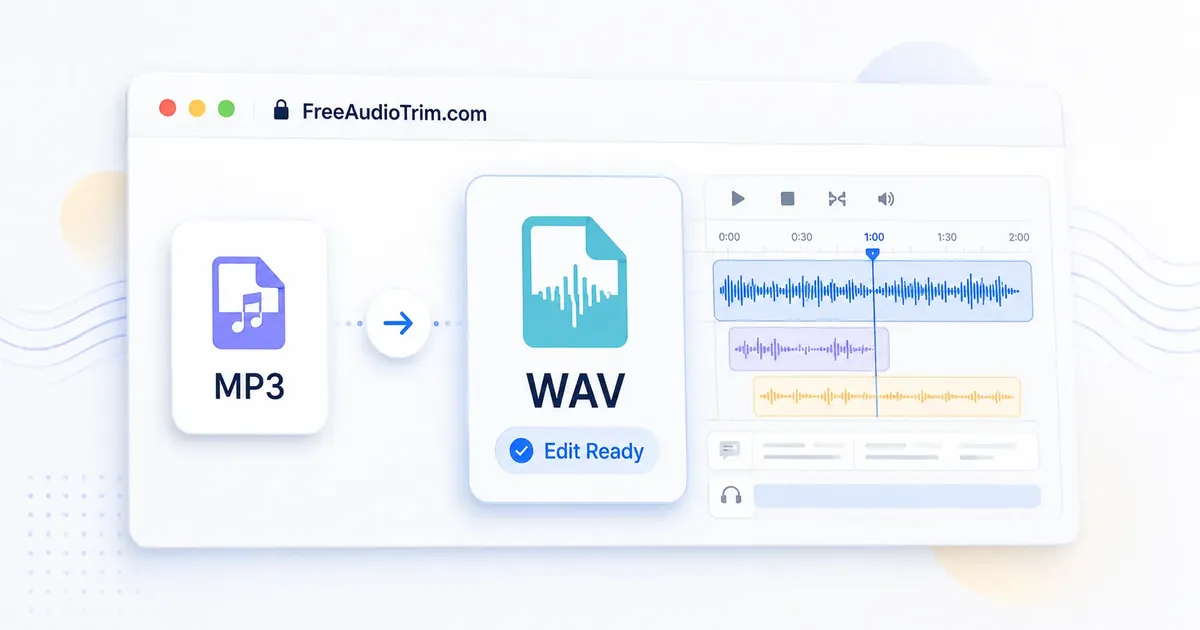
The practical workflow is simple: trim the MP3 if you only need part of it, convert the useful section to WAV, edit or process the WAV, normalize volume near the end, then export the final format your project needs. You can do the conversion with the FreeAudioTrim MP3 to WAV converter, which runs in your browser with no upload required for this tool.
When to Use an MP3-to-WAV Workflow
WAV is useful when the file is about to become part of a production workflow. It gives editors, video apps, transcription tools, and audio software a predictable uncompressed working file. That matters most when you will do more than one step.
- Editing: Use WAV before cutting, repairing, combining, or processing the same file several times.
- Video production: WAV is widely accepted by video editors and is easier to manage in timeline-based projects.
- Podcast cleanup: Convert to WAV before deeper editing, noise cleanup, volume matching, or episode assembly.
- Transcription prep: WAV can be a stable format before trimming, cleaning, and sending audio through a transcription workflow.
- Collaboration: If another editor, producer, or client asks for WAV, convert before handing off the file.
Keep the MP3 when you only need to share, stream, email, upload to a platform, or make a quick one-time cut. MP3 stays smaller, downloads faster, and is often the right final delivery format.
What Conversion Does and Does Not Do
MP3 reduces file size by permanently removing audio data. WAV commonly stores uncompressed PCM audio, which is why it is much larger and easier for editing tools to process cleanly. Converting MP3 to WAV changes the container and working format, but it does not rebuild the information the MP3 encoder already discarded.
| Question | Practical Answer |
|---|---|
| Does WAV sound better than MP3? | A WAV made from the original recording can be better. A WAV made from an MP3 keeps the MP3's existing limits. |
| Does conversion restore lost detail? | No. Lost MP3 detail cannot be recovered by conversion. |
| Why use WAV at all? | WAV is a safer working format for editing, processing, transcription prep, and video workflows. |
| Why is WAV bigger? | WAV stores much more audio data per second than MP3, so file size increases quickly. |
Recommended FreeAudioTrim Workflow
Use only the steps you need. The best workflow is the one that avoids unnecessary conversion and keeps the file easy to manage.
- Trim first if needed. If you only need one section, use the Audio Cutter or Free MP3 Cutter before converting. Smaller input files are easier to process, especially on mobile.
- Convert MP3 to WAV. Open the MP3 to WAV converter, choose your MP3, run the browser-based conversion, and download the WAV working file.
- Edit the WAV. Use the WAV in your video editor, podcast editor, DAW, or next browser tool. Keep it as the working copy while you make changes.
- Normalize after the structure is set. Once the cuts and cleanup are done, use Normalize Audio Volume so the volume pass matches the final shape of the audio.
- Export for the destination. Keep WAV for production handoff or archiving. Export MP3 when you need a smaller file for sharing, publishing, or web delivery.
For a simple file path, name your files clearly: interview-source.mp3, interview-edit.wav, and interview-final.mp3. It keeps the source, working copy, and final export from getting mixed up. If you need broader format choices before or after WAV, use Audio Converter.
Why this matters in real production
MP3 and WAV both have a place. WAV is the better working format when you still need to cut, clean, subtitle, transcribe, or hand audio to another editor. MP3 or M4A is usually better once the work is finished and the file needs to move quickly.
Privacy note: The FreeAudioTrim converter is designed for local browser processing, so supported MP3 files do not need to be uploaded to a server before conversion.
Practical tip: Keep the original MP3 untouched, make a WAV working copy, and export a smaller MP3 or M4A only after the edits are done.
Limitations to know: A WAV made from an MP3 will not recover lost detail. It also creates a larger file, so long recordings may be easier to handle on a laptop or desktop.
Step-by-Step: Convert MP3 to WAV Online
- Start with the cleanest MP3 you have. If you have multiple versions, choose the highest bitrate or least-edited source.
- Remove parts you do not need. Trim long intros, dead air, or irrelevant sections first when the final WAV only needs part of the recording.
- Open the converter. Go to Convert MP3 to WAV.
- Choose the MP3 from your device. The tool is designed for browser-based processing, so your file can stay on your device instead of being uploaded to a server.
- Run the conversion. Wait for the browser to finish processing. Large files can take longer on phones or older laptops.
- Download and test the WAV. Play the start, middle, end, and loudest section before using it in a project.
- Continue your workflow. Edit, clean up, transcribe, or place the WAV in a video timeline. Normalize volume after your structural edits are complete.
File Size: What to Expect
WAV files are large because they usually store uncompressed audio. A five-minute MP3 that is only a few megabytes can become a WAV file tens of megabytes in size. A long interview, lecture, or podcast episode can become hundreds of megabytes.
This is normal, but it changes how you should work. Trim before converting when possible, avoid creating duplicate WAV exports, and keep only the working versions you actually need. On mobile, large WAV files can also hit browser memory limits faster than the original MP3.
Common Mistakes to Avoid
- Expecting quality restoration: WAV cannot restore MP3 detail that was already removed.
- Converting the entire file when you only need one clip: Trim first to save time, storage, and memory.
- Normalizing too early: Normalize after trimming and editing so the loudness pass reflects the finished audio.
- Using WAV for every final delivery: Keep WAV for editing and handoff, but use MP3 when small file size matters.
- Overwriting the source MP3: Keep your original file untouched so you can restart if an edit goes wrong.
- Ignoring mobile limits: Long files can fail or stall on phones because conversion depends on browser memory and device power.
Mobile and Conversion Failures
Browser-based conversion is convenient, but your device still does the work. If conversion fails, the cause is usually file length, memory pressure, unsupported encoding, a damaged source file, or an older browser.
- Try trimming the MP3 first and converting only the section you need.
- Close other browser tabs and apps, then reload the converter.
- Check that the MP3 plays normally before converting.
- Use a current version of Chrome, Safari, Edge, or Firefox.
- For long podcast or video files, retry on a desktop or laptop with more memory.
If you are preparing a file for transcription, consider trimming irrelevant sections and normalizing the final working audio before using the Audio and Video Transcription tool.
Privacy: No Upload Required
The FreeAudioTrim MP3 to WAV workflow is designed to run directly in your browser. That means your file can be processed locally on your device instead of being sent to a server for conversion. This is especially useful for client recordings, interview audio, podcast drafts, private voice notes, and production files that should not leave your machine.
As with any browser-based tool, performance depends on your device, browser, file size, and source format. For sensitive work, keep the original file backed up and review the exported WAV before sharing it.
FAQ
Does converting MP3 to WAV improve audio quality?
No. Converting MP3 to WAV does not restore detail removed by MP3 compression. WAV is useful because it gives you a safer working format for editing and processing, not because it rebuilds lost audio data.
When should I convert MP3 to WAV?
Convert MP3 to WAV when you plan to edit in a DAW, prepare audio for video editing, clean podcast audio, run transcription prep, normalize volume, or pass the file to software that prefers WAV.
When should I keep the MP3 instead?
Keep MP3 when you only need to share, stream, email, upload, or do a quick one-time cut. MP3 is smaller and more convenient when you do not need a production working file.
Why is WAV much larger than MP3?
WAV commonly stores uncompressed PCM audio, so it keeps far more data per second than MP3. A short MP3 can become a WAV file many times larger after conversion.
Should I trim before converting MP3 to WAV?
Yes, if you already know which section you need. Trimming first reduces the amount of audio you convert, saves storage, and can help browser-based conversion finish faster.
Should I normalize volume before or after converting?
For most editing workflows, convert or trim first, then normalize after the final structure is set. That way the volume pass reflects the finished audio instead of sections you may remove later.
Can I convert MP3 to WAV without uploading it?
Yes. FreeAudioTrim's MP3 to WAV converter is designed to run in your browser, so the file can be processed on your device without a server upload.
What should I do if MP3 to WAV conversion fails on mobile?
Try a shorter trimmed file, close other browser tabs, check that the MP3 plays correctly, use a modern browser, or retry on a desktop if the file is long or your phone is low on memory.
Bottom Line
Convert MP3 to WAV when it helps the workflow: editing, video, podcast production, transcription prep, normalization, or handoff. Keep MP3 when small file size and easy sharing matter more. The honest rule is simple: WAV protects the next steps, but it does not undo MP3 compression.
Ready to use that workflow? Start with the MP3 to WAV converter, then trim, edit, normalize, or export based on the project. If you are not locked to WAV and want to compare output formats first, start with Audio Converter.