
How to Remove Silence from Audio Without Cutting Words
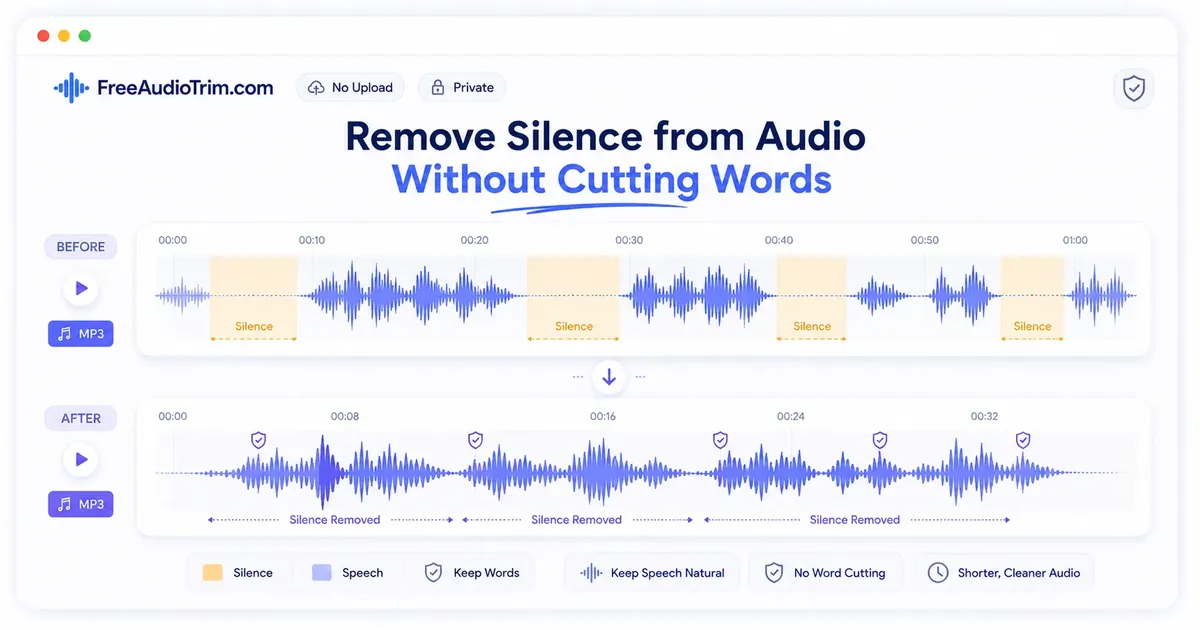
Removing silence is not about deleting every pause. The goal is to remove long stretches of dead air while keeping conversations, voice recordings, and natural pacing intact. Careful settings and a quick preview help you shorten a recording without cutting quiet words or making it sound rushed. This guide covers a practical workflow for podcasts, interviews, voice notes, lectures, and meeting recordings. It also explains how to choose the right silence threshold, avoid common mistakes, and prepare your audio for editing, sharing, or transcription.
How Silence Removal Works
Silence removal detects sections where the audio stays below a selected volume threshold for a chosen amount of time. When both conditions are met, those quiet sections can be shortened or removed to improve the pacing of the recording. The goal is not to remove every pause, but to reduce long stretches of dead air while keeping conversations and voice recordings natural.
This is a timing adjustment rather than an audio repair process. Silence removal can shorten long pauses, setup delays, and empty gaps between words or sentences. It does not remove background noise, fix echo, improve microphone quality, or restore clipped audio. If background noise stays above the selected threshold, the tool may treat it as part of the recording instead of silence.
The best results usually come from conservative settings. A moderate threshold and an appropriate minimum silence duration help preserve quiet words, natural breaths, and sentence endings while removing pauses that do not add value. Think of silence removal as refining the rhythm of a recording rather than making every quiet moment disappear.
When to Remove Silence From Audio
Removing silence works best when a recording has long pauses that interrupt the listening experience without adding meaning. The goal is to improve pacing while preserving natural conversations, quiet words, and the rhythm of the speaker. It is especially useful for spoken recordings that need to sound more focused before editing, sharing, or transcription.
Privacy and Local Processing
Some recordings contain interviews, client discussions, research material, or personal voice notes that should stay on your device. Processing supported files locally in your browser lets you shorten long pauses without uploading the recording to a server, making the workflow more suitable for privacy sensitive audio.
Practical Editing Tips
Start with conservative settings instead of trying to remove every pause. A longer minimum silence duration helps preserve soft breaths, sentence endings, and brief thinking pauses that make conversations sound natural. After processing, listen to the recording from beginning to end and adjust the settings only if longer gaps still remain.
What Silence Removal Cannot Fix
Silence removal adjusts timing, not audio quality. It can shorten dead air between words, sentences, or topics, but it does not remove background noise, repair clipping, reduce echo, separate overlapping speakers, or improve a poor recording. For recordings where silence is part of the experience, such as music, dramatic narration, meditation, or sound design, manual editing usually provides better control.
Remove Silence Step by Step
Step 1: Choose the Recording
Open the silence removal tool and select the recording you want to edit. This workflow works best with podcasts, interviews, lectures, meetings, and voice notes where long pauses interrupt the natural flow of the conversation.
Step 2: Listen Before Changing Settings
Play a short section that includes normal speech, a quiet word, a breath, and a longer pause. Listening first gives you a clear reference before adjusting the silence detection settings.
Step 3: Start With a Moderate Threshold
Begin with conservative settings instead of the most aggressive option. If the tool uses decibel values, around -35 dB is often a practical starting point for spoken recordings. Cleaner recordings can usually handle a higher threshold, while quieter or noisier audio often needs gentler settings.
Step 4: Set the Minimum Silence Duration
Choose how long a quiet section must last before it is treated as removable silence. A longer minimum duration helps preserve natural pauses, breaths, and sentence endings while removing extended gaps that slow the recording.
Step 5: Preview the Result
Listen carefully to sentence endings, speaker transitions, and quiet words. These areas usually reveal whether the settings are too aggressive or still need adjustment.
Step 6: Fine Tune the Settings
Make small changes rather than large ones. If long pauses remain, increase the threshold slightly or reduce the minimum silence duration. If words or breaths begin to disappear, lower the threshold or increase the minimum duration until the recording sounds natural.
Step 7: Finish the Recording
After the pacing feels right, decide whether the recording needs any additional editing. You may want to normalize the volume, trim unwanted sections at the beginning or end, convert the file to another format, or prepare it for transcription before sharing or publishing.
Choosing the Right Silence Threshold
The silence threshold determines which parts of a recording the tool treats as silence. If the threshold is too low, long pauses may remain. If it is too high, quiet words, soft consonants, breaths, and sentence endings may be removed along with the silence.
There is no single threshold that works for every recording. The right setting depends on the speaker's volume, microphone quality, background noise, and how the recording was made.
- Clean podcast or studio recordings: A higher threshold usually works well because the voice is clear and background noise is minimal.
- Home office recordings: Start with moderate settings to protect quieter words and natural sentence endings.
- Phone recordings and voice notes: Use a lower threshold because background noise can make silence more difficult to detect accurately.
- Very quiet speakers: Choose gentler settings so soft words are not mistaken for silence.
A simple way to judge the settings is by listening to the result. If quiet words or breaths disappear, the threshold is too aggressive. If long pauses remain, increase the threshold slightly or reduce the minimum silence duration until the recording sounds natural.
Keeping Audio Natural After Silence Removal
Natural recordings include pauses, breaths, and brief moments of silence. These give listeners time to process information, make conversations feel genuine, and help speakers sound relaxed. Removing every quiet moment can make a recording feel rushed and uncomfortable to follow.
Keep short pauses when they improve clarity and leave light breaths if removing them makes the recording sound unnatural. Focus on removing long stretches of dead air where nothing meaningful is happening rather than trying to eliminate every moment of silence.
- Podcasts: Leave enough space between speakers so conversations still sound natural and easy to follow.
- Interviews: Keep brief pauses before answers, as they often reflect natural thinking rather than unnecessary silence.
- Voice notes: Remove long thinking gaps while preserving the speaker's natural rhythm.
- Transcription: Protect quiet words and sentence endings. A shorter recording is only useful if every spoken word remains intact.
Silence Removal and Background Noise
Silence removal works best when there is a clear difference between speech and quiet sections. Background noise from fans, air conditioners, traffic, laptop cooling systems, or room echo can make that difference harder to detect. If the noise stays above the selected threshold, the tool may treat it as part of the recording instead of silence. When working with noisy recordings, start with conservative settings and preview the result carefully. Small adjustments usually produce better results than aggressive silence removal, which can clip quiet words or shorten natural pauses.
It is also important to understand the limits of the process. Silence removal can improve the pacing of a recording by reducing long gaps, but it does not remove background noise, reduce echo, repair clipping, fix distortion, or separate overlapping speakers. If the recording quality is poor, improving the source audio first will usually produce better results than changing the silence settings alone.
Common Mistakes
Using an Aggressive Threshold Too Early
Start with moderate settings and make small adjustments. An aggressive threshold may remove quiet words, soft consonants, and sentence endings before you notice the problem.
Removing Every Pause
Not every silent moment should disappear. Short pauses help listeners follow conversations and make recordings sound more natural.
Cutting Quiet Words and Sentence Endings
Review sections where the speaker talks softly or trails off at the end of a sentence. These are the first places where overly aggressive settings can remove meaningful audio.
Deleting Every Breath
Light breaths are part of natural conversation. Remove only the breaths that are distracting instead of trying to eliminate them all.
Expecting Silence Removal to Fix Audio Quality
Silence removal improves pacing, not recording quality. It does not remove background noise, repair echo, fix distortion, or separate overlapping speakers.
Skipping the Final Review
Always listen to the edited recording before sharing or publishing. A final review helps you catch clipped words, missing pauses, or unnatural transitions while they are still easy to correct.
Choosing the Next Editing Step
Once the pacing feels natural, decide whether the recording needs any further editing before you share, publish, or archive it. Each step solves a different problem, so only continue with the ones that improve the final result.
- Volume is uneven: Normalize the audio so speech remains consistent from beginning to end, especially when different speakers or recording devices are used.
- The recording still has unwanted sections: Trim the beginning or end to remove setup chatter, accidental recordings, or rough endings that silence removal does not affect.
- A different file format is required: Convert the recording to the format needed for your editor, video project, or playback device without changing the pacing you have already created.
- You need a transcript or subtitles: Generate the transcript after removing unnecessary pauses. A cleaner recording is usually easier to review and edit.
- The recording is ready to share: Listen to the final version one more time before publishing or sending it to make sure the pacing, transitions, and overall listening experience feel natural.
For most spoken recordings, a practical workflow is to remove silence first, trim any unwanted sections, normalize the volume if needed, convert the file only when required, and generate transcripts or subtitles as the final step.
Finish With Natural Sound
Good silence removal is controlled, not aggressive. Remove long stretches of dead air while preserving natural pauses, quiet words, and the rhythm of the conversation. Small adjustments and careful previewing usually produce better results than trying to eliminate every moment of silence. When the pacing feels right, complete any remaining edits such as trimming, volume normalization, format conversion, or transcription. A natural sounding recording is easier to listen to, review, and share.
Frequently Asked Questions
How do I remove silence from audio without cutting words?
Use a moderate threshold, set a minimum silence duration, and listen back around quiet words and sentence endings. If words are clipped, lower the threshold or increase the minimum silence duration.
Can I remove silence without uploading the file?
Yes. The FreeAudioTrim silence removal workflow processes supported audio locally in your browser, so no upload is required. Your file stays on your device.
What threshold should I use?
Start with a moderate threshold. If the tool uses decibels, around -35 dB is a practical starting point for many speech recordings. Move gradually based on what you hear.
How do I keep natural pauses?
Use a longer minimum silence duration so short pauses remain. Aim to remove long empty gaps, not every moment of quiet.
Should I remove breaths?
Only remove breaths that are distracting. Light breaths often make speech sound human, and removing all of them can make the recording feel over-edited.
Does silence removal work with noisy recordings?
It can, but noisy files are harder. Background hum or room noise may be detected as audio, so use gentler settings and listen carefully before exporting.
Should I remove silence before transcription?
Usually yes if you are only removing long gaps. It can make the file shorter and easier to review. Do not use aggressive settings that cut quiet words, because that can hurt transcript quality.
Should I normalize after removing silence?
For most speech, yes. Remove silence first, then normalize volume so the final file plays at a steadier level.
Can I trim after removing silence?
Yes. After silence removal, trim rough starts, rough endings, intros, outros, or sections you do not want in the final file.
Does removing silence reduce quality?
Silence removal mainly changes timing. It does not improve the original microphone quality, and the main risk is over-editing. Use careful settings to avoid clipped speech.
When should I not remove silence?
Avoid automatic silence removal when silence is intentional, such as music, meditation, dramatic narration, sound design, or any recording where timing is part of the creative effect.