
How to Trim MP3 Online for Free
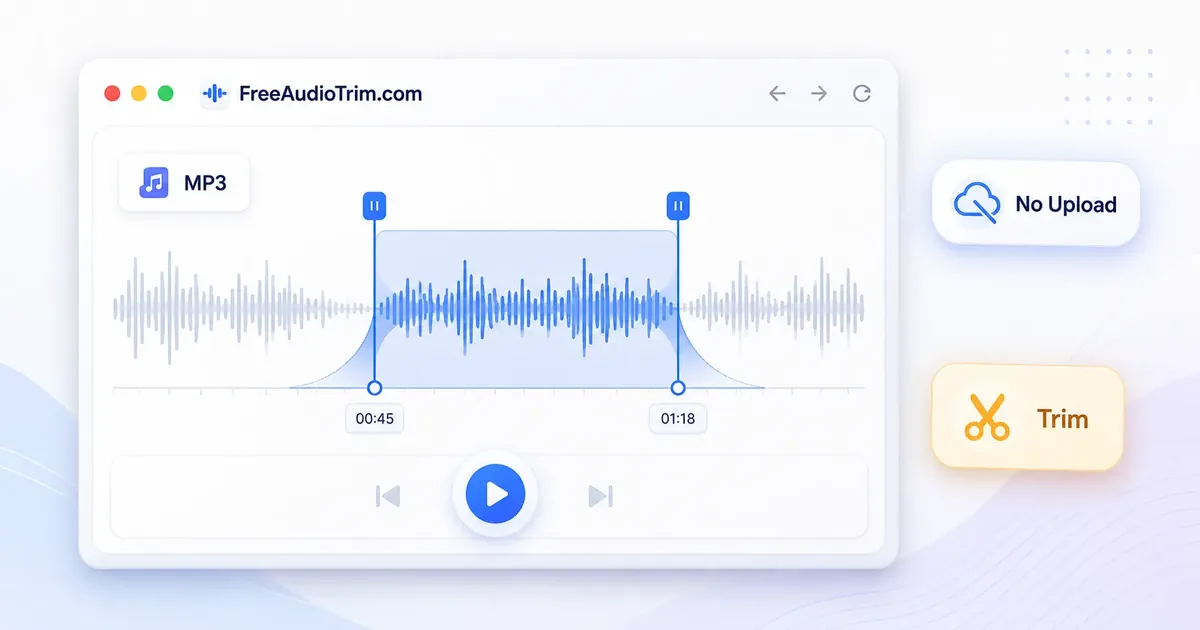
Trimming an MP3 lets you remove unwanted sections without changing the rest of the recording. Whether you're shortening a podcast, creating a ringtone, editing a voice note, or cutting a music clip, a browser based MP3 cutter makes the process quick and private. This guide walks you through the complete MP3 trimming workflow, from making clean cuts and preventing clicks to choosing the right export format for your next step.
When MP3 Trimming Makes Sense
MP3 trimming is useful whenever you need to shorten a recording without changing the rest of the audio. It helps remove unwanted sections, improve timing, and prepare a file for sharing or further editing. Whether you are using an audio cutter for a quick edit or preparing audio for another tool, starting with a clean, well trimmed file usually leads to better results.
Podcasts and Voice Recordings
Remove false starts, long introductions, awkward pauses, or unnecessary endings before publishing or sharing. A cleaner recording is also easier to review, transcribe, or normalize later.
Music Clips and Ringtones
Keep only the part you want, whether it is a chorus, a guitar solo, or a favourite section of a song. For ringtones, trim the strongest 20 to 30 seconds before converting the file if needed.
Social Media and Short Videos
Create shorter audio clips for Reels, Shorts, TikTok, or other platforms by keeping the most engaging quote, sound bite, or music segment. Removing slow introductions helps listeners reach the main content faster.
Meetings, Lectures, and Voice Notes
Cut setup chatter, long pauses, or unrelated discussions so the recording focuses on the information that matters. Shorter files are easier to share and quicker to review.
Before Other Audio Tasks
Trimming is often the first editing step before converting formats, removing silence, normalizing volume, or generating a transcript. Starting with only the audio you need saves time and avoids processing unnecessary sections.
A small adjustment at the beginning or end of a recording can make a noticeable difference to the finished result. Avoid cutting too close to the first or last word. Leave a little extra audio, preview the cut points, and make final adjustments only after listening to the exported file.
How to Trim an MP3 File
Step 1: Open the Right Tool
Open the online audio trimmer and load the MP3 file you want to edit. The browser prepares the waveform so you can choose exactly where the clip should begin and end. Wait until the waveform finishes loading before placing any cut markers.
Step 2: Select Your MP3 File
Open your MP3 and wait for the waveform to load completely. Larger files, high bitrate recordings, and older mobile devices may take longer to process. Let the waveform finish loading before placing any cut markers.
Step 3: Set the Start Marker
Place the start marker slightly before the section you want to keep. For speech, leave a brief breath before the first word so the recording sounds natural. For music, begin near the start of a beat or phrase instead of cutting into a strong note.
Step 4: Set the End Marker
Move the end marker just after the final word, chord, or natural fade finishes. Leaving a small amount of trailing audio helps the recording end smoothly instead of sounding cut off.
Step 5: Preview the Edges
Listen to the beginning and end of the selected section before exporting. If you hear a click, pop, or abrupt transition, adjust the markers slightly. Small changes often produce much cleaner results than trimming exactly at the waveform edge.
Step 6: Export the Trimmed File
Export as MP3 when the file is ready to share, publish, or use as a ringtone. If you plan to continue editing in another application, consider creating a WAV copy after trimming so you have a better working format for additional processing.
Step 7: Test the Final MP3
Play the exported file in your preferred media player or on the device where you plan to use it. A quick final check helps you catch clipped words, abrupt endings, or unexpected volume changes before you share or publish the recording.
How to Avoid Clicks and Harsh Cuts
Clicks often happen when a cut starts or ends in the middle of a sharp sound, such as a spoken consonant, a drum hit, or a sudden change in the waveform. Instead of trimming at the exact point you first choose, move the marker slightly until it lands on a quieter transition. Small adjustments can make a noticeable difference.
For speech recordings, place cut points during brief pauses, breaths, or natural room tone. For music, trim at beat boundaries, phrase endings, or where notes naturally fade. If the start or end still sounds abrupt, apply a short fade in or fade out. Even a subtle fade is often enough to create a smoother, more natural sounding result.
MP3 Quality and Export Format
Trimming an MP3 does not automatically reduce its audio quality. You're simply choosing a shorter section of the recording to keep. Any noticeable quality loss usually comes from exporting the file multiple times or using a lower bitrate during re-encoding, since MP3 is a lossy format.
For a ringtone, podcast excerpt, voice note, or social media clip, exporting as MP3 is usually the best choice. If you plan to continue editing, mixing, or processing the recording, creating a WAV version gives you a better working file because it avoids additional compression during later edits.
The right export format depends on what you plan to do next. Use the comparison below to choose the option that best fits your workflow.
| Format | Use When | Tradeoff |
|---|---|---|
| MP3 | You are sharing, publishing, uploading to social, making a ringtone, or sending a small final file. | Small and convenient, but lossy compression can add artifacts after repeated exports. |
| WAV | You are editing more, mixing, archiving a work version, or sending the clip to software that prefers uncompressed audio. | Larger file, but better for production workflows and repeated processing. |
Browser and Device Limitations
FreeAudioTrim works directly in your browser, so performance depends on your device and the size of the recording. A short song or voice note usually loads quickly, while a long podcast, lecture, or high bitrate MP3 may take longer because the browser prepares the audio locally before you can start editing. Supported files stay on your device during trimming, making this workflow suitable for personal recordings, interviews, lectures, and other audio you prefer not to upload.
If your MP3 does not load or takes longer than expected, try these steps:
- Refresh the page and open the file again.
- Use a current version of Chrome, Edge, Safari, or Firefox.
- Close other memory intensive browser tabs before loading large files.
- Try trimming the recording on a desktop computer if your phone runs out of memory.
- Convert an unusual or damaged file to a supported format before trimming.
Avoid These Trimming Mistakes
Small editing decisions can have a noticeable impact on how the finished recording sounds. These common mistakes are easy to avoid and can help you produce a cleaner final result.
Trimming Before You Know the Exact Cut Points
Listen through the recording before placing your markers. Rushing into the first cut often means trimming important words, notes, or sounds that you later need to restore.
Cutting Too Close to Spoken Words or Music
Place the start marker slightly before the first word or musical phrase, and leave a small tail after the final word, chord, or natural decay. A little extra audio usually sounds more natural than a cut that's too tight.
Ignoring Preview Before Export
Always preview the beginning and end of the selected section before exporting. This final check helps you catch timing issues, clipped words, or harsh cut points before saving the file.
Choosing the Wrong Export Format
Export MP3 when the recording is ready to share or publish. If you plan to continue editing, create a WAV version to avoid additional compression during repeated processing.
Assuming Every Browser Handles Large Files the Same Way
Browser based editing depends on available memory and device performance. Longer recordings may process more smoothly on a desktop computer than on an older phone or tablet.
Replacing the Original Recording Too Soon
Keep the original recording until you have checked the exported file and confirmed everything sounds correct. If you need to adjust the cut points later, you will still have the untouched source available.
Choosing the Right Next Step
Once you have trimmed your MP3, decide what the recording still needs before you share or publish it. Some files are ready to use immediately, while others benefit from one or two additional editing steps.
The volume is too quiet or uneven
Normalize the audio so it plays at a more consistent level across different speakers and devices.
There are still long pauses
Remove unnecessary silence to improve pacing without affecting the important parts of the recording.
You need another file format
Convert the trimmed MP3 if your editor, device, or publishing platform requires a different format.
The recording needs more editing
Continue working with the file if you plan to enhance speech, restore audio, or make additional edits.
You need a transcript or subtitles
Generate the transcript after trimming so only the audio you want is processed.
You're creating a ringtone
Once you have selected the best section, convert it to the format required for your phone if necessary.
Build Your Audio Editing Workflow
A simple editing workflow saves time and helps you avoid repeating work. Instead of applying every tool at once, complete each step only when your recording needs it.
- Trim the recording to keep only the section you want.
- Preview the beginning and end of the clip, then adjust the cut points if needed.
- Apply short fades if the start or end sounds abrupt.
- Remove long pauses to improve pacing where appropriate.
- Normalize the volume if different parts of the recording sound uneven.
- Convert the file only when another format is required for editing or sharing.
- Generate a transcript or subtitles after the audio has been finalized.
Following this order helps you produce a cleaner recording while avoiding unnecessary processing and repeated exports.
Start With a Clean Cut
Trimming an MP3 is more than shortening a recording. A clean cut helps your audio sound natural and prepares it for whatever comes next. Take a moment to place the cut points carefully, preview the beginning and end of the clip, and export the format that best fits your needs. Whether you're creating a ringtone, sharing a podcast excerpt, editing a voice note, or preparing audio for transcription, starting with a well trimmed recording makes every following step easier. A few extra seconds spent checking the final result can make the difference between an edit that sounds polished and one that feels rushed.
Frequently Asked Questions
How do I trim an MP3 online?
Open Free MP3 Cutter, select your MP3, set the start and end markers, preview the selected section, add fades if needed, and export the trimmed file.
Can I trim MP3 without uploading it?
Yes. FreeAudioTrim processes supported trimming workflows locally in your browser, so your file does not need to leave your device.
Can I cut an MP3 for free?
Yes. The MP3 cutter is free to use in your browser, with no signup or subscription required.
How do I trim an MP3 for a ringtone?
Choose the most recognizable short section, usually around 20 to 30 seconds, trim cleanly on beat or phrase boundaries, then use Ringtone Maker or MP3 to M4R if you need an iPhone-compatible ringtone file.
How do I trim an MP3 for a podcast?
Remove false starts, long intros, repeated lines, and rough endings first. Then use Normalize Audio Volume if the clip needs more consistent loudness before publishing.
How do I trim an MP3 for social media?
Start with the hook. Keep the quote, beat, or moment that matters, then preview it on phone speakers if possible. Social clips often work best when the first second is clean and direct.
Does trimming MP3 reduce quality?
The trim selection itself does not damage the part you keep. Quality changes are more likely when the file is re-encoded, especially after repeated exports or low bitrate settings.
How do I avoid clicks after trimming?
Move the cut point to a quieter moment, avoid slicing through sharp sounds, and use a short fade-in or fade-out when the edge still clicks.
Should I export MP3 or WAV after trimming?
Export MP3 for sharing, social clips, ringtones, and final delivery. Export or convert to WAV when you plan more editing or need an uncompressed working file.
Can I normalize audio after trimming?
Yes. If the trimmed clip is too quiet or uneven, use Normalize Audio Volume after the cut is final.
Can I remove silence before trimming?
Yes, but for most people it is easier to trim the main section first, then use Remove Silence from Audio if long pauses remain inside the clip.
Can I trim MP3 on mobile?
Yes, many mobile browsers can trim MP3 files. For large files or precise marker placement, desktop usually feels easier and handles memory better.
What should I do if my MP3 does not load?
Refresh the page, try a modern browser, close other heavy tabs, or use desktop for large files. If the file is unusual or damaged, convert it with Audio Converter and trim the new copy.