
How to Extract Audio from Video Online
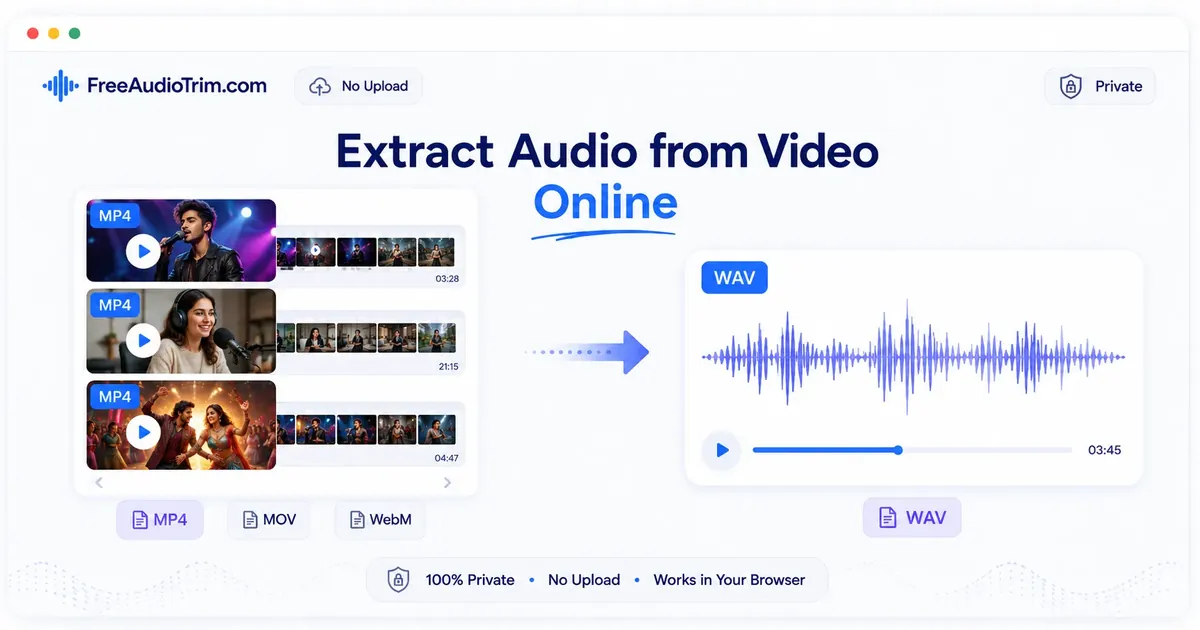
To extract audio from video online, open the Extract Audio from Video tool and select your MP4, MOV, or WebM file. The browser reads the video and pulls out the embedded audio track directly on your device. No upload, no account, no waiting for a server to process the file.
Once the extraction is done, download the WAV file. WAV is the better starting point when you still need to trim, normalize, remove silence, or transcribe the audio. It keeps the quality intact through each step. Convert to MP3 only when the edit is finished and you need a smaller file for sharing or storage.
When to Use This Workflow
Audio extraction is useful when the sound inside a video is more important than the picture. Instead of keeping a large video file open for every next step, you can work with the soundtrack on its own.
Transcription
Extract speech from a video before turning it into editable text. Working with a standalone audio file makes the transcription process faster and cleaner.
Subtitles
Prepare audio from MP4, MOV, or WebM files before creating captions, SRT, or VTT files. A clean audio file gives you more accurate results at the subtitle stage.
Podcast Editing
Pull interview audio from a recorded video call, webinar, or camera file. It is easier to trim, clean, and export a WAV file than to work from the original video throughout the whole edit.
Lectures
Save the spoken track from a class recording so it is easier to review, trim, or transcribe. A standalone audio file is also simpler to share with others.
Meetings
Isolate discussion audio from a screen recording before making notes or a transcript. Shorter audio files are quicker to work through than full screen recordings.
Use a full video editor instead when you need to change the picture, repair sync, mix multiple camera angles, or rebuild the original project timeline.
How to Extract and Trim Audio from MP4, MOV, or WebM
Step 1: Start With the Cleanest Video You Have
Use the original export when possible. Recompressed social downloads can sound worse and may have odd metadata.
Step 2: Open the Extractor
Go to Extract Audio from Video and select your MP4, MOV, WebM, MKV, or other supported video file.
Step 3: Let the Browser Process the File
Your video stays on your device while the tool reads the embedded audio track. Nothing gets sent to a server for supported files.
Step 4: Download the Extracted WAV
WAV is a practical first export because it is easier to edit, clean, transcribe, and use for subtitle preparation.
Step 5: Preview the Result
Check the beginning, middle, and end for missing sound, wrong duration, silence, or obvious sync problems.
Step 6: Continue With the Next Step
Trim rough edges, remove long pauses, normalize volume, transcribe speech, or convert to MP3 depending on your goal.
MP3 vs WAV After Extraction
The FreeAudioTrim extractor downloads WAV first. That is intentional: WAV is a better working format when the audio still needs cleanup or review. MP3 is useful later, after the edit is finished and file size matters more than production flexibility.
| Format | Use It When | What to Know |
|---|---|---|
| WAV | You need to trim, normalize, remove silence, transcribe, subtitle, archive, or edit again. | Larger file, better as a working copy, avoids extra compressed export steps. |
| MP3 | You need a smaller file for sharing, podcast drafts, uploads, or storage. | Compressed file, convenient for delivery, not ideal as the main editing master. |
If you are unsure, keep the WAV as your master and create an MP3 copy only after trimming and cleanup.
Common Mistakes to Avoid
Most failures come from one of three places: the browser cannot read the video container, the embedded audio codec is unsupported, or the file does not contain a usable audio track. Large videos can also hit memory limits, especially on phones and tablets.
If the file loads but exports silence, check whether the original video has sound in a normal media player first. If it plays silently there too, the source file is the problem. If it plays fine elsewhere but fails in the browser, the codec or file structure is likely the issue. Switching to a modern desktop browser, using a shorter clip, or re-exporting with standard MP4 settings usually resolves it.
Expecting Every MP4 to Work the Same Way
Two MP4 files can look identical but behave completely differently depending on what audio codec is inside.
MOV and WebM Files Can Behave Differently
MOV and WebM are common, but extraction still depends on the audio stream inside the file.
Assuming the Video Has Audio
Some screen recordings, camera exports, or muted clips contain no usable audio track.
Converting to MP3 Too Early
Trim and clean the WAV first, then make an MP3 copy if you need one.
Normalizing Before Cutting
Remove unwanted sections first so the volume tool balances the audio you actually plan to keep.
Change One Variable When Extraction Fails
If extraction fails, change one variable. Try a shorter export, a desktop browser, or a more standard source file.
Recommended Workflow for Video to Audio
Most video-to-audio jobs follow the same basic order. Extract the audio first, clean up the structure, handle loudness, then transcribe or convert. The tools below follow that sequence so you can move through each step without backtracking.
- Extract Audio from Video to pull WAV audio from MP4, MOV, WebM, MKV, or another supported video.
- Audio Cutter Online or Trim MP3 Online to remove setup talk, dead endings, or unrelated sections.
- Remove Silence from Audio when the recording has long gaps, dead air, or slow meeting pauses.
- Normalize Audio Volume to make speech easier to hear after the edit is mostly done.
- Audio & Video Transcription Online when you need transcripts, subtitles, captions, TXT, SRT, or VTT output.
- Audio Converter or MP3 to WAV Converter when another app or platform needs a specific audio format.
Frequently Asked Questions
Can I extract audio from MP4?
Yes. MP4 is one of the most common video containers for extraction. It works best when the browser can read the file and the video contains a standard audio track.
Can I extract audio from MOV or WebM?
Yes, for supported MOV and WebM files. Compatibility depends on the audio codec inside the container, not just the file extension.
Can I extract audio without uploading the video?
Yes. For supported files, FreeAudioTrim extracts audio locally in your browser. Your video stays on your device instead of being sent to a server.
Does extracting audio reduce quality?
Extraction does not magically improve or repair the source. The result depends on the audio inside the original video. Use WAV as the first working file to avoid unnecessary compressed export steps before editing.
What should I do if the video has no audio track?
Check the source video in a normal media player first. If it plays silently there too, there may be no audio track to extract. You will need a different export or the original recording with sound included.
Can I extract audio for podcast editing?
Yes. This is a common workflow for recorded video calls, interviews, webinars, and camera footage. Extract WAV first, trim the conversation, remove long gaps if needed, then normalize volume before making a final MP3.
Can I extract audio from lecture or meeting recordings?
Yes. Extracted audio is useful for lecture review, meeting notes, transcripts, and searchable archives. If the recording is long, use a desktop browser and keep a clean copy of the original video.
Can I transcribe extracted audio?
Yes. After extraction, open Audio & Video Transcription Online to turn speech into text, subtitles, captions, SRT, or VTT. For better review, trim irrelevant sections and normalize quiet speech first.