
How to Make Audio Louder Without Distortion
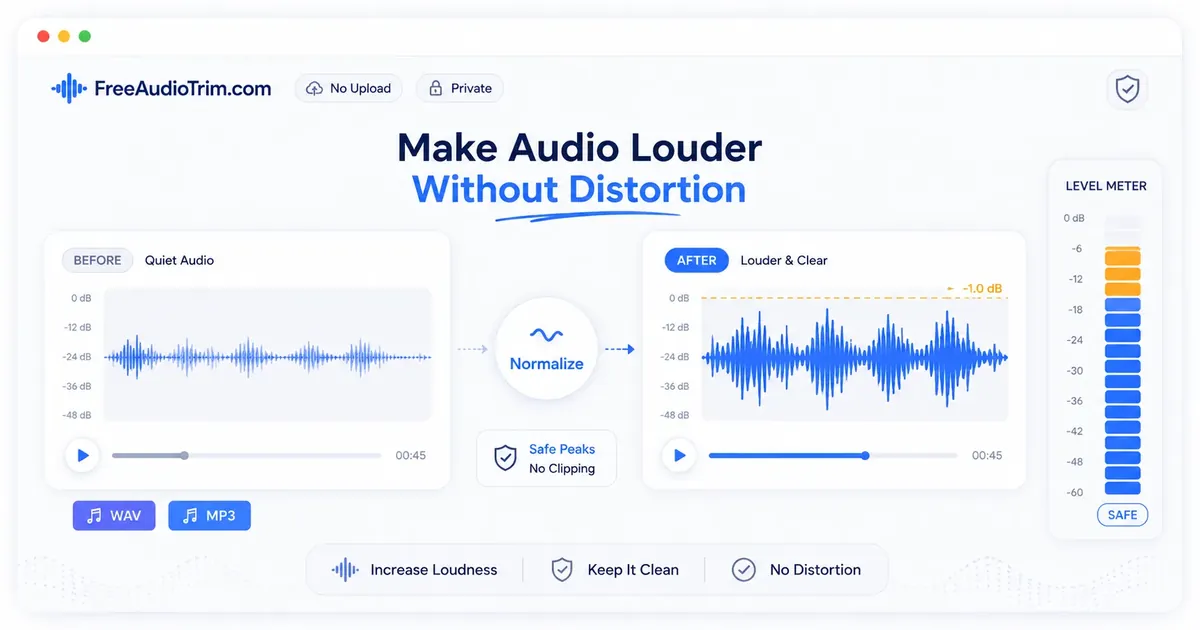
Direct answer: to make audio louder safely, trim the file first, remove long silent sections if needed, then use Normalize Audio Volume or a small volume boost. Keep peak headroom below 0 dBFS, preview loud words or hits, and avoid pushing noisy audio until it crackles.
This guide is for quiet voice recordings, podcast clips, video audio, lecture files, interviews, and audio you want to prepare for transcription. It explains when to normalize, when to boost volume, when compression is the better fix, and where browser-based no-upload tools fit in the workflow.
FreeAudioTrim tools run in your browser for supported workflows. That means your file can stay on your device instead of being uploaded to a server just to make a quick loudness adjustment.
Quick Answer: The Safe Loudness Workflow
- Cut away parts you do not need before changing volume.
- Remove long silences if they affect pacing or transcription prep.
- Use normalization for uneven audio, or a modest volume boost for consistently quiet audio.
- Keep peaks below the digital ceiling, ideally around -2 dBFS to -1 dBFS for a beginner-safe export.
- Preview the loudest moments before downloading the final file.
The important idea is simple: make the useful parts louder, not the entire messy recording.
Why This Matters in Real Production
Before a podcast, reel, lesson, client preview, or interview clip goes live, the listener should not need to chase the volume control. Matching loudness across clips before publishing makes a project feel more intentional, especially when the source files came from different phones, microphones, rooms, or recording days.
Privacy note
For supported files, the FreeAudioTrim loudness workflow runs locally in your browser. That means you can make quick level changes without uploading private interviews, client recordings, lecture audio, or voice notes to a server.
Practical tip
Pick one short reference clip that already sounds right, then normalize the other clips toward a similar playback level. Preview the loudest words in every clip before export, not just the first few seconds.
Limitations to know
Loudness tools cannot repair clipped peaks, heavy room reverb, severe distortion, strong background noise, or overlapping speakers. If those problems are present, raising volume may make them more obvious.
When to Use This Workflow
Use this workflow when the audio is understandable but too quiet, uneven, or hard to hear on phones and laptops. It works especially well for speech files where clarity matters more than maximum loudness.
Good fits
- Quiet voice recordings: voice notes, lectures, interviews, and screen recordings captured with low input gain.
- Podcast and interview audio: episodes where one speaker is softer than another or the final export feels weak.
- Video audio: MP4 or MOV recordings where speech needs to be easier to hear after extraction.
- Transcription prep: files where speech is present but too low or inconsistent for comfortable review.
Poor fits
- Heavy background noise: boosting the voice will also boost fans, traffic, hum, hiss, and room echo.
- Clipped recordings: if the original audio is already distorted, making it louder will not restore the missing waveform.
- Overlapping speakers: normalization may help level, but it cannot separate people talking over each other.
Normalization vs Volume Boost
A volume boost adds gain to the whole file. If every part of the recording is evenly quiet, a small boost can work well.
Normalization checks the file level and raises it toward a target without blindly pushing peaks past the ceiling. It is usually the better first choice when you want to make audio louder online without clipping.
The decision rule is straightforward: if the whole file is quietly consistent, boost carefully. If some parts are loud and others are too soft, normalize instead. If the quiet and loud parts are extremely far apart, you may need compression before or alongside normalization.
| Problem | Best first fix | Why |
|---|---|---|
| The whole file is too quiet | Small volume boost or normalization | You have room to raise the file evenly. |
| Some sections are quiet and others are loud | Normalization | It balances level more safely than guessing one gain value. |
| Quiet words disappear but loud words jump out | Compression, then normalization | Compression narrows dynamic range before final level setting. |
| The file has hiss, hum, or echo | Noise cleanup first if available | Loudness tools raise unwanted noise along with speech. |
Step-by-Step: Make Audio Louder With FreeAudioTrim
- Start with the right source. If your sound is inside a video, use Extract Audio from Video first. Working with the audio track directly makes loudness decisions easier.
- Trim before you normalize. Use Audio Cutter or Free MP3 Cutter to remove false starts, long endings, dead air, or sections you will not publish. Normalize after the trim so the tool measures the final content, not throwaway material.
- Remove long silent gaps when they get in the way. If your recording has repeated pauses, use Remove Silence from Audio before loudness work. This is useful for podcasts, lectures, voice notes, and transcription prep.
- Normalize or boost the audio. Open Normalize Audio Volume. For most speech files, aim for a clean, comfortable level rather than maximum volume. Keep a small peak buffer, especially if you will export to MP3.
- Preview the risky moments. Listen to loud consonants, laughter, applause, drum hits, and sudden music. If you hear crackle, harshness, or fuzzy edges, reduce the boost.
- Export and test where people will listen. Check headphones, laptop speakers, and a phone speaker. If the file is for captions or notes, send the cleaner version to Audio and Video Transcription after loudness cleanup.
This order matters: extract if needed, trim first, remove silence when useful, normalize loudness, then transcribe or export. Doing loudness first can make deleted sections affect your final level.
How to Avoid Clipping and Distortion
Digital audio has a hard ceiling called 0 dBFS. When peaks hit or pass that ceiling, the waveform gets flattened. That is clipping, and it often sounds like crackle, grit, or harsh buzzing on loud words and transients.
A safer beginner target is to leave peaks around -2 dBFS to -1 dBFS. That small headroom buffer helps protect the file during export and playback conversion. You do not need to hit 0 dBFS to sound loud.
If the file still feels quiet after safe normalization, the issue may be dynamic range rather than peak level. That is where compression can help: it reduces the gap between loud and quiet moments so the average level can come up without clipping the peaks.
Quiet Voice, Podcast, Video, and Transcription Tips
Quiet voice recordings
For voice notes, lectures, and interviews, remove the parts you do not need, then normalize. If the speaker was far from the microphone, expect room noise to rise too. Use a conservative setting and prioritize intelligibility over loudness.
Podcast and interview audio
Normalize after editing the episode structure. If one guest is much quieter than another, a single volume boost may make the louder speaker clip. In that case, balance sections or use compression before final normalization.
Video audio
When a video sounds quiet, first extract the audio from the video. Then trim, remove silence if useful, and normalize. After export, test the file against the actual video so speech does not fight music, effects, or background sound.
Transcription prep
Cleaner, steadier speech can make transcription review easier. Normalize before transcription when the voice is too low or jumps between soft and loud sections. Still, loudness is not magic: background noise, accents, overlapping speech, low-quality microphones, and echo can all affect transcript quality.
What If the Audio Is Too Noisy?
If a recording has hiss, hum, wind, keyboard noise, traffic, or room echo, making it louder will make those problems louder too. Normalization cannot tell which sound is the voice and which sound is the air conditioner.
For noisy files, use the smallest loudness change that makes the voice easier to follow. If the noise is louder than the speech, you may need a dedicated noise-reduction tool or a better source recording before normalization will help.
For future recordings, the best loudness fix happens at capture: move the microphone closer, reduce room noise, record a test sentence, and leave enough headroom so loud words do not clip.
Privacy and No-Upload Editing
Quiet recordings can include client conversations, lectures, interviews, voice notes, or private video audio. For supported files, FreeAudioTrim processes the loudness workflow locally in your browser, so no upload is required and the file stays on your device.
This is especially useful when you only need a quick fix before sharing, editing, or transcription prep. Large files can still take longer because your own browser and device are doing the work.
Common Mistakes When Making Audio Louder
- Normalizing before trimming: unwanted sections can affect the level calculation.
- Pushing peaks to 0 dBFS: this leaves no safety margin and can cause clipping after export.
- Boosting noise with the voice: a louder file is not always a clearer file.
- Using volume boost when compression is needed: uneven recordings may need dynamic control, not just gain.
- Skipping preview: distortion often appears only on loud words, laughter, applause, or music hits.
- Re-exporting MP3 again and again: repeated lossy exports can make artifacts more obvious.
Recommended FreeAudioTrim Workflow Links
Use these tools in the order that matches your file:
- Extract Audio from Video - start here when your source is MP4, MOV, or another video file.
- Audio Cutter or Free MP3 Cutter - trim first so only the kept audio affects loudness.
- Remove Silence from Audio - cut long pauses before final level balancing.
- Normalize Audio Volume - make speech or music louder and more consistent without uploading supported files.
- Audio and Video Transcription - transcribe after cleanup when you need text, captions, or subtitle prep.
FAQ
How do I make audio louder online?
Trim the file first, remove long silent sections if needed, then use Normalize Audio Volume or a small volume boost. Preview the loudest parts before downloading.
Can I increase audio volume without uploading it?
Yes. FreeAudioTrim's supported browser-based tools process your file locally, so no upload is required for this workflow. Your file stays on your device while you edit.
What is the difference between normalization and volume boost?
A volume boost raises the whole file by a chosen amount. Normalization raises or balances level toward a target while checking the file's peak level, which is safer for avoiding clipping.
Can making audio louder cause distortion?
Yes. Distortion happens when peaks are pushed too close to or past 0 dBFS, or when a noisy or already damaged recording is boosted too far.
Can I fix uneven volume?
Often, yes. Normalization can help when levels vary moderately. If whispers and loud sections are far apart, compression may be needed before final normalization.
Should I normalize before or after trimming?
Normalize after trimming. Cut the final section first, then adjust loudness so the kept audio controls the result.
Should I normalize before transcription?
Normalize before transcription if the speech is quiet or uneven. It can make review easier, but it cannot fix heavy noise, echo, overlapping speakers, or unclear pronunciation by itself.
Does normalization reduce quality?
Conservative normalization should not noticeably reduce quality. Problems usually come from clipping, over-boosting noisy files, or repeatedly exporting to lossy formats like MP3.
What if my audio is too noisy?
Use a smaller loudness change. Normalization will raise background noise along with the voice, so very noisy recordings may need noise reduction or a cleaner source file first.
When do I need compression instead of normalization?
Use compression when the quiet and loud parts are too far apart. Use normalization when the overall file level is simply too low or needs a safe final target.
Conclusion
Making audio louder is not about forcing every file to maximum volume. The cleaner workflow is to trim first, remove silence when useful, normalize or boost carefully, leave headroom, and preview the loudest moments before export.
When you are ready to fix a quiet file, open Normalize Audio Volume and make the kept audio clearer without sending supported files through an upload queue.
Try These Audio Editing Tools
You can perform these tasks using free browser-based tools from FreeAudioTrim.
For full trim, cleanup, loudness, and export order on one page, read How to Edit Audio Online. It works as parent workflow when this page is only one step in a bigger voice-editing job.