
Audio Editing Workflow Guide
Direct Answer: The Best Audio Editing Workflow
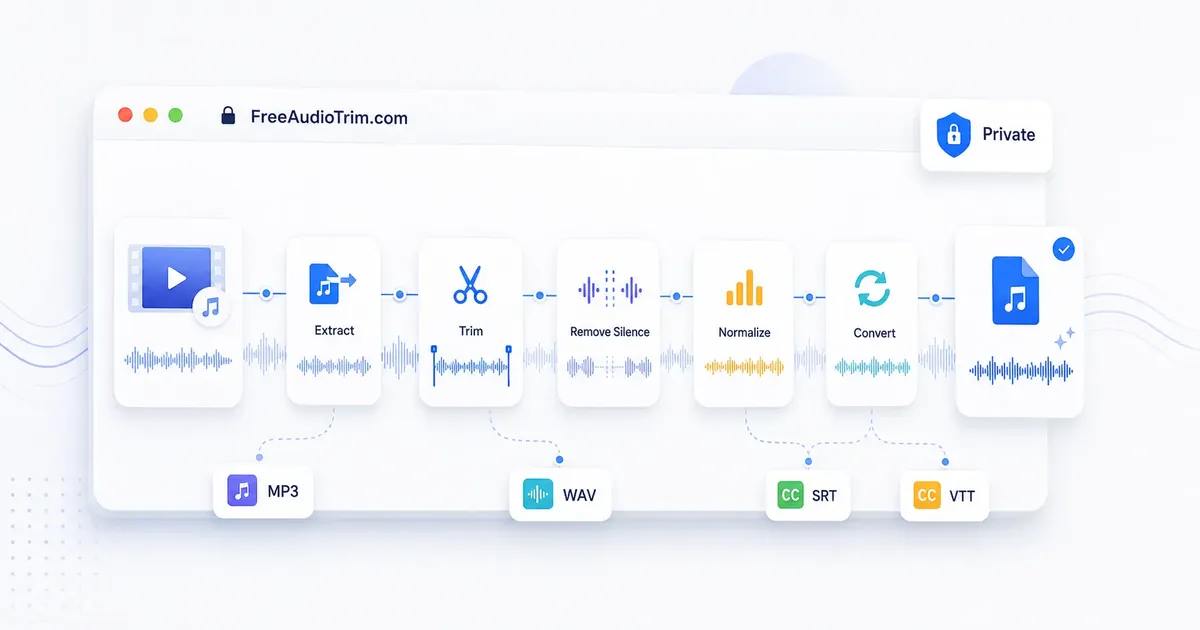
The fastest practical audio editing workflow is: extract audio from video if needed, trim the parts you do not want, remove long silences, normalize volume, then export in the right format. Use MP3 for small sharing files, WAV for further editing or archiving, and M4A or AAC when your next step is video or mobile publishing.
You can do this with FreeAudioTrim's browser-based tools without installing software. For supported tools, your file is processed locally in your browser and no upload is required, which is useful for private recordings, client audio, interviews, lectures, voice notes, and podcast drafts.
Start with Audio Cutter for most files, Free MP3 Cutter for quick MP3 trims, Remove Silence from Audio for dead air, Normalize Audio Volume for loudness, and Audio Converter for final audio format changes.
When to Use This Workflow
Use this workflow when you need a clean result from one audio file or a small set of clips. It is designed for focused edits, not heavy multitrack production.
- Voice recordings: remove false starts, tighten pauses, and make the speaker easier to hear.
- Podcasts and interviews: cut intros or mistakes, reduce dead air, and even out playback volume.
- Social clips: shorten a recording, export a lightweight file, or prepare sound from a video.
- Transcription and subtitles: trim irrelevant sections before using Audio & Video Transcription.
- Ringtones and short clips: trim a precise section before using a delivery format such as MP3 or M4R.
Browser editing is usually enough for these jobs because the changes are structural and practical: timing, loudness, silence, extraction, and conversion. Move to professional audio software when you need multitrack mixing, surgical noise repair, mastering, complex effects, music production, or restoration work.
When editing is only the preparation step, use the guide that matches the source and delivery: prepare and review an audio transcript, solve video codec or audio extraction problems, or time, import, and deliver subtitle files.
Trust Notes Before Editing
Why this matters in real production: a simple order prevents rework. Trim first, remove only the silence that hurts pacing, normalize after the structure is final, then convert once for the destination.
Privacy note: for supported FreeAudioTrim tools, files are processed locally in your browser. That is useful when a recording includes client material, internal meetings, interviews, lectures, or unpublished creative work.
Practical tip: keep the original file untouched and name exports clearly. If a silence setting, volume pass, speed change, or merge order feels wrong later, you can restart from the source.
Limitations to know: browser editing depends on file length, memory, codec support, and device power. Use professional software when you need multitrack mixing, precision repair, mastering, or detailed sound design.
Step-by-Step Audio Editing Instructions
Follow this order when you want the fewest surprises. Each step changes a different part of the file, so the sequence matters.
1. Keep an Original Copy
Before editing, keep the source file untouched. Save exports with clear names such as interview-trimmed.wav or voice-note-final.mp3. That makes it easy to go back if a silence threshold, trim point, or export setting was too aggressive.
2. Extract Audio First If the Source Is Video
If your audio is inside an MP4, MOV, or another video file, start with extract audio from video. This gives you an audio file you can trim, normalize, convert, or prepare for transcription without handling the full video every time.
3. Trim the Start, End, and Obvious Mistakes
Trimming is the first real edit because it decides what stays in the file. Use Audio Cutter for common audio formats or Free MP3 Cutter when you are working with MP3. Leave a little space before speech starts and after speech ends so the result does not feel chopped.
4. Remove Long Silence Without Removing Natural Pauses
Use Remove Silence from Audio after basic trimming. Silence removal is best for long dead air, not every quiet breath. If the threshold is too strict, speech can sound rushed or unnatural, so preview the result and keep short pauses where they help meaning and rhythm.
5. Normalize Volume After the Structure Is Final
Use Normalize Audio Volume after trimming and silence cleanup. Normalization adjusts overall loudness more sensibly once the final timeline is clear. It can make quiet speech easier to hear, but it should not be used as a cure for clipped, distorted, or badly recorded audio.
6. Convert or Export for the Next Use
Choose the export format based on where the file goes next. Use the audio file converter for everyday format changes and Convert MP3 to WAV when another editor, transcription workflow, or archive process needs WAV.
| Format | Best For | Quality Note |
|---|---|---|
| MP3 | Sharing, uploads, podcast drafts, small files | Lossy. Avoid repeated MP3 exports during editing. |
| WAV | Further editing, production handoff, archives | Large but uncompressed when saved as PCM. |
| M4A / AAC | Mobile, video workflows, compact delivery | Lossy, but efficient and widely supported. |
| FLAC | Lossless storage with smaller size than WAV | Preserves quality, but support varies by app. |
Recommended FreeAudioTrim Tool Workflow
Here is the most common FreeAudioTrim path for a clean speech file, podcast segment, lecture clip, or social audio draft:
- Video source? Open extract audio from video and create an audio-only file.
- Need a shorter clip? Open Audio Cutter or Free MP3 Cutter and trim the section you want.
- Too much dead air? Open Remove Silence from Audio and use conservative settings first.
- Too quiet or uneven? Open Normalize Audio Volume after the edit is structurally final.
- Wrong file type? Open Audio Converter to convert audio files for your delivery format, or use Convert MP3 to WAV when you specifically need WAV.
- Need one file from multiple clips? Use Merge Audio Files after the individual clips are cleaned.
- Need text or captions? Turn the cleaned audio or video into editable text, SRT, or VTT.
The privacy advantage is simple: for supported browser tools, the processing happens locally on your device. There is no upload queue, no account gate, and no subscription screen at export.
How to Avoid Quality Loss
Most quality loss problems come from repeated lossy exports, not from a single careful trim. MP3, AAC, and M4A are lossy formats, which means they remove some audio data to reduce file size. Exporting the same file to MP3 again and again can make artifacts more noticeable.
- Keep the original file unchanged.
- Use WAV as a working format when you expect multiple editing passes.
- Export MP3 once at the end when you need a small sharing copy.
- Do not convert MP3 to WAV expecting lost quality to come back. WAV can help workflow stability, but it cannot restore removed detail.
- Preview the final file on headphones and phone speakers before publishing.
Common Audio Editing Mistakes
- Normalizing too early: trim and remove silence first so loudness is based on the final file.
- Cutting too close to words: leave small margins so speech starts and ends naturally.
- Removing every pause: short pauses help speech sound human and easier to follow.
- Choosing MP3 for every step: MP3 is good for delivery, but WAV is better for repeated editing.
- Expecting format conversion to repair bad audio: conversion changes the container or encoding, not the quality of a poor recording.
- Ignoring browser and device limits: very long files, unusual codecs, or low-memory devices can slow down browser editing.
Browser Editing vs Professional Software
Use browser-based editing when the job is clear and single-purpose: cut this section, remove long gaps, make speech more even, extract audio from a video, convert a file, or prepare audio before transcription. It is faster because you open the tool, process the file, and export.
Use professional software when the project has many tracks, detailed noise cleanup, EQ, compression, mastering, music beds, automation, repair plugins, or client review versions. A browser tool is a sharp utility for common edits; a digital audio workstation is a full production room.
FAQ
What is the fastest way to edit audio online?
Use a simple sequence: extract audio from video if needed, trim unwanted sections, remove long silences, normalize volume, then export in the format your next step needs.
Can I edit audio without uploading it?
Yes. FreeAudioTrim's supported browser tools process files locally on your device, so no upload is required for those workflows.
Does editing audio reduce quality?
Editing can reduce quality if you repeatedly export to lossy formats like MP3. Trim carefully, keep a source copy, use WAV for ongoing editing when possible, and export to MP3 only for the final sharing copy.
Should I trim silence before or after normalization?
Trim obvious unwanted sections first, remove long silence next, then normalize after the structure is final. That keeps loudness adjustment based on the actual audio you plan to publish.
How do I make audio louder without distortion?
Use normalization after trimming, then preview the result. If the original file is already clipped or harsh, making it louder will not fix the distortion; you may need a cleaner recording or professional repair tools.
When is browser-based audio editing enough?
Browser editing is enough for trimming, silence cleanup, basic loudness fixes, extraction, conversion, ringtones, social clips, and quick podcast cleanup. Use professional software for multitrack mixing, detailed noise repair, mastering, restoration, or complex effects.
Which format should I export after editing?
Export MP3 for small sharing files, WAV for further editing or archiving, M4A or AAC for video and mobile workflows, and FLAC when you want lossless storage with smaller size than WAV.
Start With the Tool That Matches Your Next Step
If you only need one edit, start there. If you are cleaning a full recording, follow the workflow from top to bottom.
- Audio Cutter for most trimming jobs.
- Free MP3 Cutter for quick MP3 edits.
- Remove Silence from Audio for long pauses and dead air.
- Normalize Audio Volume for more consistent playback.
- Audio Converter for MP3, WAV, M4A, AAC, OGG, and FLAC changes.
- Convert MP3 to WAV when the next step needs an editing-friendly working file.
- Audio & Video Transcription when the cleaned file needs text, SRT, or VTT.
For deeper walkthroughs, read How to Edit Audio Online, How to Trim MP3 Online, How to Convert MP3 to WAV, Remove Silence from Audio Guide, and How to Make Audio Louder. For specialized workflows, compare speech enhancement tools or follow the MP3-to-iPhone ringtone guide.