Best Adobe Podcast Enhance Speech alternatives
Bad speech audio kills good content fast. A strong idea, a good interview, or a useful tutorial can still lose people if the recording sounds noisy, hollow, thin, or hard to follow.
Adobe Podcast Enhance Speech is still one of the best-known tools for quick cleanup. The problem is that many people searching for an alternative are not asking for a bigger creator suite. They want cleaner voice audio with less friction.
Direct answer
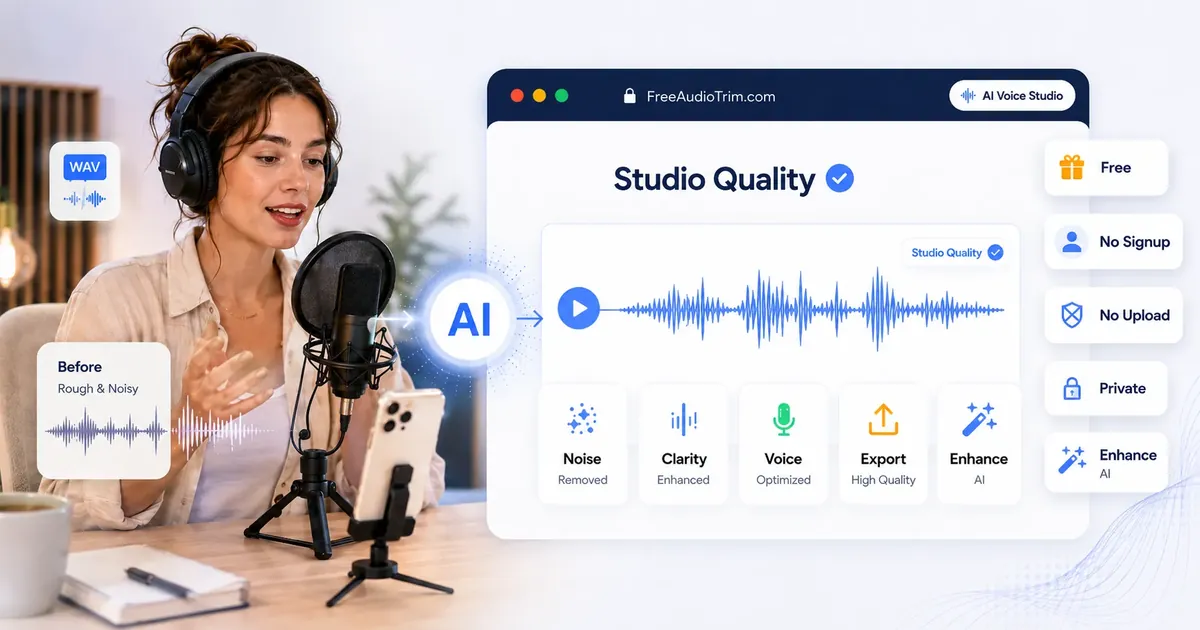
Start with FreeAudioTrim AI Voice Studio if you want the same basic outcome without turning a quick cleanup job into a whole account-and-app situation. Open the page, clean the file, compare the result, export WAV, done.
That is the simplest answer. After that, the choice depends on what kind of mess you are dealing with. NVIDIA Broadcast is better for live mic cleanup. Auphonic and Descript make more sense when the job is really podcast production. iZotope RX is what people reach for when the recording is actually damaged, not just a little rough.
Why people look for Adobe alternatives
Adobe Podcast is popular for a reason. It is simple, and the speech cleanup can be strong. But it is still not the right fit for everyone.
In practice, most of the frustration is not about the concept. It is the workflow around it. Maybe you do not want to sign in. Maybe the recording is private. Maybe you are cleaning one voice note, not producing a whole show. Maybe you just do not want to get dragged into a larger editor when the real task is, "Can you make this clip easier to hear?"
Once you strip it down, the alternatives fall into a few obvious buckets:
- Browser tools for quick post-processing
- Live microphone tools for streaming and calls
- Podcast production suites with loudness and export features
- Desktop repair software and plugins for harder audio problems
Best Adobe Podcast Enhance Speech alternatives compared
| Tool | Cost | Best for | What to know first |
|---|---|---|---|
| FreeAudioTrim AI Voice Studio | Free | No-signup browser voice cleanup | Built for simple speech enhancement, not full multitrack editing |
| Adobe Podcast Enhance Speech | Free plan plus Premium plan | Well-known one-click speech cleanup | Free plan is audio only, one file at a time, and capped at 30 minutes per file |
| NVIDIA Broadcast | Free with compatible RTX hardware | Live mic cleanup for streaming, calls, and voice chat | Best for real-time input, not browser export workflow |
| Audacity plus OpenVINO | Free | Local desktop cleanup with more manual control | Requires install and setup, so it is slower to start |
| Auphonic | Free 2 hours per month, then paid credits | Podcast post-production and loudness workflow | Free exports include an Auphonic jingle |
| Descript Studio Sound | Paid plans and AI credit usage | Edit and enhance inside one content editor | Works inside a larger editing workflow, not as a tiny stand-alone cleaner |
| Cleanvoice AI | Free trial, then hourly credits or subscription | Podcast cleanup, filler removal, and mouth sound cleanup | More of a post-production service than a quick browser enhancer |
| VEED Clean Audio | Free plan trial plus paid editor access | Video-first creators who already edit in VEED | Clean Audio lives inside the full editor |
| Kapwing Clean Audio | Free with limits, then paid plans | Browser video editing with captions and cleanup together | Project, account, and workspace flow is bigger than a one-step enhancer |
| iZotope RX | Paid desktop software | Deep dialogue repair and damaged audio | Powerful, but expensive and much more complex |
| Waves Clarity Vx | Paid plugin | Real-time denoise inside pro edit software | Requires a compatible plugin host |
Why FreeAudioTrim comes first
FreeAudioTrim works well because it stays in its lane. It is not pretending to be a full podcast studio, a team workspace, or a pro audio suite. It is for the very common moment when the recording is usable, but you would not want to publish it yet.
You open the page, add the file, choose the voice style, compare the result, export WAV, and move on. No signup. No install. No surprise paywall after you already spent time on the file.
That is especially useful for:
- YouTubers cleaning up voiceovers before editing
- Podcasters fixing quick remote or backup recordings
- Students improving presentations or lecture submissions
- Teachers cleaning lesson recordings
- Freelancers polishing client voice notes
- Remote teams making internal clips easier to hear
It also fits the broader FreeAudioTrim approach: supported files process locally in your browser, so you can keep private recordings on your device while still getting a practical cleanup step before publishing, sharing, or transcribing.
The best alternatives, broken down by real use case
1. FreeAudioTrim AI Voice Studio
AI Voice Studio is the one to try first when you do not need a production suite. It is speech-first, lets you compare original and enhanced audio, and exports a WAV you can drop into the rest of your workflow.
That sounds simple because it is simple. If the thought in your head is, "I just need this voice to sound better," this is probably the right place to start. Phone recordings, laptop mics, quick voiceovers, interviews, class audio, draft podcast takes, all of that fits.
2. NVIDIA Broadcast
NVIDIA Broadcast is the better Adobe alternative for people who need help before or during recording, not after. If you stream, jump on a lot of calls, record game commentary, or use voice chat all day, live microphone cleanup matters more than post-processing a file afterward.
The catch is obvious: it depends on compatible RTX hardware. If you do not already live in that setup, it is not the quick answer.
3. Audacity plus OpenVINO
Audacity with OpenVINO AI plugins is a good free desktop option if local processing matters and you do not mind doing a little more yourself. You get noise suppression and other AI-assisted tools without paying a subscription, and the work stays on your machine.
The tradeoff is time. You have to install it, get comfortable with it, and do more manual cleanup. Some people prefer that. Some really do not.
4. Auphonic
Auphonic is less about "clean this voice clip" and more about finishing podcast episodes properly. It is known for loudness management, leveling, and export-ready production steps. If you are putting out episodes regularly, it starts to make more sense than a one-off enhancer.
If you only want quick cleanup, it can feel like more process than you need. The free plan also includes a jingle on exports.
5. Descript Studio Sound
Descript is for people who already want editing, transcription, captions, screen recording, and voice cleanup in one place. Studio Sound reduces background noise and echo, and it is useful if Descript is already where you work.
If all you need is a quick fix, it can feel like a lot. You are stepping into a larger editor, and Studio Sound now uses AI credits on current plans.
6. Cleanvoice AI
Cleanvoice makes more sense when the problem is bigger than simple noise. It also targets filler words, silence, mouth sounds, and breath cleanup, so it feels more like a post-production assistant than a pure speech enhancer.
If your workflow is episode-based and hours-based, that can be useful. If you only need one clean voice file, it is probably more tool than task.
7. VEED and Kapwing
VEED and Kapwing make sense when you are already cutting short-form video and want the cleanup step inside the same browser editor that handles captions, resizing, and export. For social teams and repurposing workflows, that can be genuinely convenient.
They are probably not the first tools I would open if all I needed was speech enhancement. You are stepping into a video editor, not a dedicated voice cleaner.
8. iZotope RX and Waves Clarity Vx
These are the heavier-duty options. iZotope RX is what you look at when the audio is genuinely damaged: clipping, hum, crackle, plosives, reverb, or dialogue that needs real repair. Waves Clarity Vx is more of a plugin answer for people already working inside Premiere Pro, Audition, Resolve, Pro Tools, or another host.
Both can be excellent. Neither is the most relaxed answer for someone who just wants cleaner speech in a browser tab.
Which one should you pick?
If you do not want to read the whole comparison, this is the quick version:
- Pick FreeAudioTrim AI Voice Studio if you want free browser cleanup, no signup, and the simplest path from rough speech to downloadable audio.
- Pick Adobe Podcast if you already like its sound and do not mind the broader Adobe workflow.
- Pick NVIDIA Broadcast if your biggest problem happens live on mic, not after recording.
- Pick Audacity plus OpenVINO if you want a free local desktop option and do not mind setup.
- Pick Auphonic if you need podcast finishing, loudness control, and repeatable episode workflow.
- Pick Descript if you want enhancement tied to editing, transcription, and repurposing in one app.
- Pick Cleanvoice if filler words, breaths, and podcast cleanup matter as much as denoise.
- Pick RX or Clarity Vx if you already work in pro audio or post-production software.
A practical FreeAudioTrim workflow
If the end goal is a transcript, subtitle file, or polished clip, voice enhancement is just one step. Useful, yes. The whole workflow, no.
- Use Audio Cutter Online if you need to remove setup chatter, mistakes, or extra sections first.
- Use AI Voice Studio to clean the speech and export WAV.
- Use Normalize Audio Volume if the final delivery still needs more even playback.
- Use Audio & Video Transcription Online if you want editable text, captions, SRT, or VTT after cleanup.
That order works because it follows how people usually work anyway: record first, clean second, then publish or transcribe.
What AI voice enhancers still cannot fix
This is the part a lot of comparison posts glide past. AI voice cleanup helps. It does not perform miracles.
It can reduce steady background noise, smooth speech, and make rough recordings easier to hear. It cannot fully restore clipped audio, erase strong room echo, or rebuild words that were never captured properly in the first place. If two people are talking over each other, or the mic was too far away in a bad room, the ceiling shows up fast.
So the useful question is not "Which tool is perfect?" It is usually, "Which tool gets this file into usable shape without wasting my time?" For everyday creator audio, the simple answer is often the right one.
FAQ
Is there a free alternative to Adobe Podcast Enhance Speech?
Yes. FreeAudioTrim AI Voice Studio is a free browser option for speech cleanup. Audacity with OpenVINO is a free desktop option. NVIDIA Broadcast is also free if you already have compatible RTX hardware.
Which Adobe Podcast alternative works without uploading audio?
For supported workflows, FreeAudioTrim AI Voice Studio processes audio locally in your browser, so your file stays on your device. Audacity with OpenVINO is also local because it runs on your computer after installation.
Which option is best for live mic cleanup?
NVIDIA Broadcast is the better fit for live calls, voice chat, and streaming because it is designed for real-time microphone cleanup instead of cleaning a file after it has already been recorded.
Which option is best for podcasts?
It depends on the job. If you just need cleaner voice audio fast, start with FreeAudioTrim. If you need episode finishing, loudness standards, and a repeatable podcast workflow, Auphonic or Descript is the better fit.
Can AI voice enhancers fix echo, clipping, or distortion?
Only up to a point. They can make some recordings easier to hear, but badly clipped, distorted, or heavily reverberant audio may still need deeper repair, and sometimes the damage is permanent.
Should I enhance audio before transcription or subtitles?
Usually yes. If the speech is noisy, thin, or boxy, cleaning it first can make review easier before you move into transcription or subtitle work.
Bottom line
If you want the Adobe-style result without getting pulled into a bigger app workflow, start with FreeAudioTrim AI Voice Studio. It is free, simple, private for supported local processing, and built for the common situation where a recording is worth keeping but still needs help.
Try the file in AI Voice Studio first. If the next step is text, captions, or subtitles, move on to the audio transcription and subtitle workflow guides after cleanup.